Sometimes you need one chapter out of a manual, one invoice out of a batch, or the first ten pages of a hundred-page report. Splitting a PDF pulls out exactly what you want and leaves the rest alone. Here is how to do it cleanly so nothing goes missing.
Splitting means taking one PDF and producing one or more smaller files from it. You might extract a single page, pull out a range, or break a big document into evenly sized chunks. The original is untouched — splitting copies pages into new files rather than cutting them out of the source.
The most common is extracting a range — say, pages 12 through 18 — into a new document. The second is pulling out individual pages scattered through the file, like grabbing only the signed pages from a contract. The third is breaking one large file into many, either one file per page or one file every set number of pages, which is handy when a single PDF is really a stack of separate documents that got merged.
The classic mistake is an off-by-one error. PDF page numbers and the printed page numbers inside a document often do not match — a report might have a cover and a contents page before "page 1" appears, so the PDF's page 3 is the document's page 1. Always go by the position in the file, not the number printed on the page, and confirm by looking at the actual first and last pages of your selection before you save.
If you are extracting a range, double-check both ends. It is easy to set the start correctly and leave the end one page short. After splitting, open the new file and count — the fastest insurance against a missing page is ten seconds of looking.
If someone only needs a few pages, splitting is a courtesy — you are not making them scroll through ninety pages they do not need. But if the document only makes sense as a whole, or the pages reference each other, sending the complete file is clearer than a fragment. Split to be helpful, not just to make a file smaller.
Drop your PDF in, choose the pages or ranges you want, and pay a dollar once it is ready. You get your split files back to download — the original untouched and no watermark added.
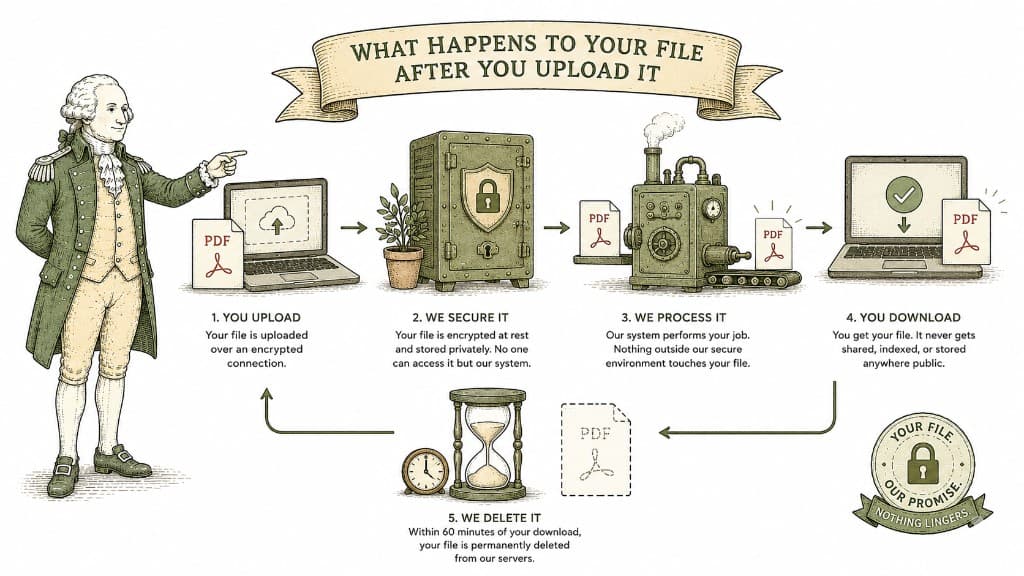
A fillable PDF lets people type directly into the fields and send it straight back. Here is what makes a PDF fillable and how to turn a flat form into one.
3 min read
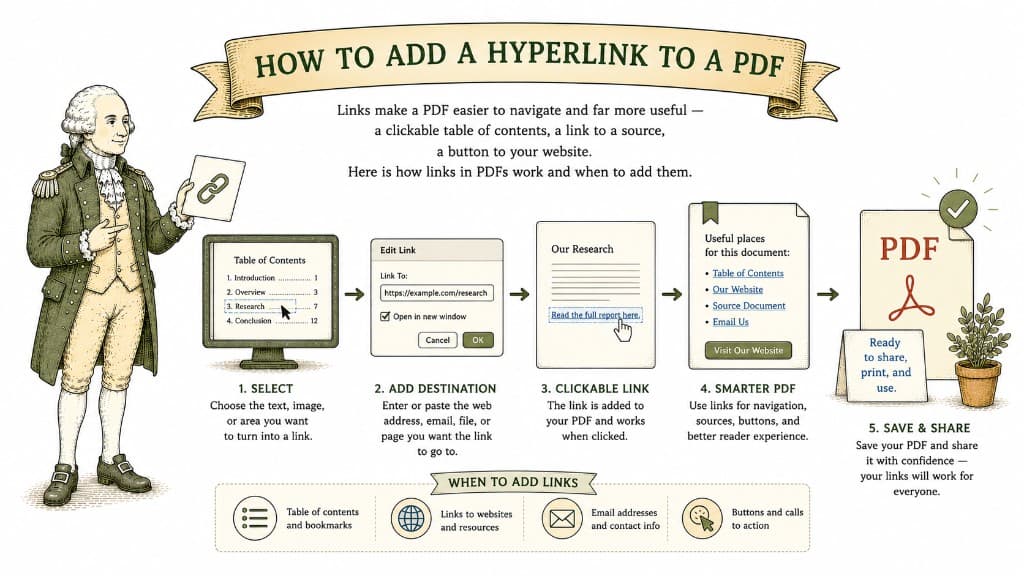
Links make a PDF easier to navigate and far more useful — a clickable table of contents, a link to a source, a button to your website. Here is how links in PDFs work and when to add them.
3 min read
You have a perfect document with one bad page. You do not need to rebuild the file — you just need that one page gone. Here is how to remove it cleanly.
3 min read