You have a perfect document with one bad page — a blank sheet, a duplicate, a page that should not be there. You do not need to rebuild the file or re-export from the original. You just need that one page gone. Here is how to remove it cleanly and confirm nothing else moved.
Deleting a page from a PDF removes it and closes the gap, so the pages after it shift up to fill the space. The rest of the document — its text, layout, and links — stays exactly as it was. You are editing the file in place, not regenerating it, which is why this is a thirty-second job rather than a do-over.
The usual cases are a blank page that crept in during scanning or exporting, a duplicate that got merged in twice, a page with a mistake you cannot fix and would rather drop, or trimming a long document down to just the pages someone needs. In all of these, the document is otherwise fine and you want a surgical removal, not a rebuild.
The one thing to get right is which page. As with splitting, the PDF's page position and the page number printed on the page often differ — covers and contents pages push the printed numbers out of sync with the file. Identify the page by looking at it, not by trusting the printed number, and confirm you have the right one before deleting.
If you are removing several pages, note that deleting one shifts everything after it. Either delete from the back of the document toward the front so the earlier page positions do not change underneath you, or select all the pages to remove in one pass so the tool handles the shifting for you. Deleting page 5, then "page 6" — which is now the old page 7 — is the classic way to remove the wrong page.
After deleting, page through the result, or at least check the area around where the page used to be, to make sure the document still flows and you did not clip a page you needed. Then give it a clear name. Ten seconds of checking is cheaper than sending a document with a page missing from the middle.
A fillable PDF lets people type directly into the fields and send it straight back. Here is what makes a PDF fillable and how to turn a flat form into one.
3 min read
Splitting a PDF pulls out exactly what you want and leaves the rest alone. Here is how to do it cleanly so nothing goes missing.
3 min read
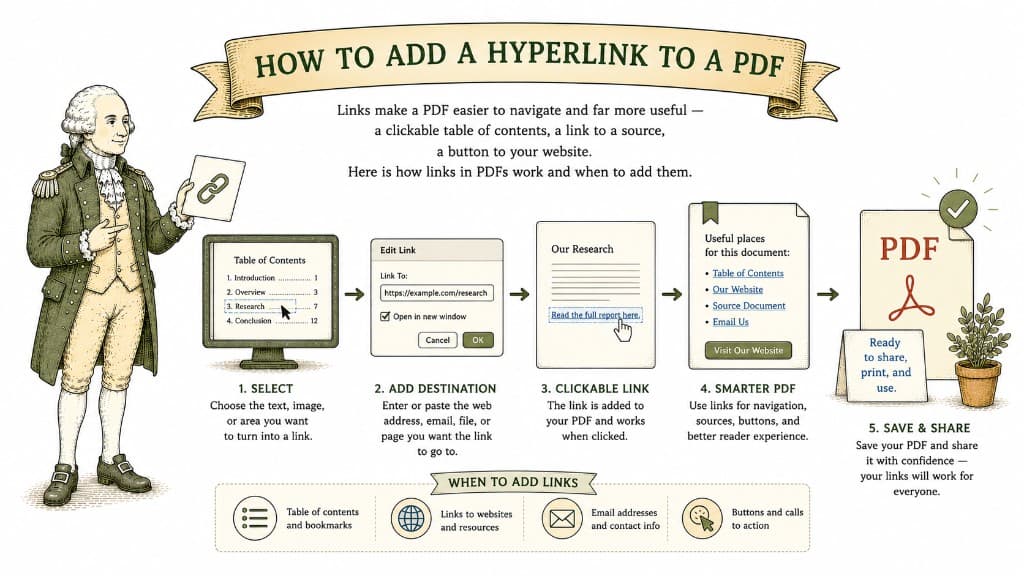
Links make a PDF easier to navigate and far more useful — a clickable table of contents, a link to a source, a button to your website. Here is how links in PDFs work and when to add them.
3 min read