Sending someone a form they have to print, fill by hand, and scan back is asking them to do your formatting work for you. A fillable PDF lets them type directly into the fields and send it straight back. Here is what makes a PDF fillable and how to turn a flat form into one.
A flat PDF is just a picture of a form — the lines and boxes are part of the image, so there is nowhere to type. A fillable PDF has form fields layered on top: clickable boxes, checkboxes, dropdowns, and date pickers that accept input and save it inside the file. The difference is the difference between handing someone a printout and handing them a real form.
When a form is fillable, every reply comes back typed, legible, and in the same place on the page. No deciphering handwriting, no half-scanned corners, no "I printed it but I do not have a scanner" emails. For anything you send to more than a couple of people — intake forms, applications, sign-up sheets, order forms — the time you spend making it fillable is repaid many times over in replies you can actually read.
There are two paths. If you start from a Word document, you can lay out the form there, leave clear space for each answer, and convert to PDF — then add the actual input fields. If you only have a flat PDF or a scan, the fields have to be drawn on top by hand: a box here for the name, a checkbox there for each option, a wider box for comments.
Good tools can detect obvious field locations automatically — a line with "Name:" in front of it is a strong hint — but you will usually want to check the placement and tab order so the form flows in a sensible sequence when someone presses Tab to move between fields.
A single-line text box suits names, emails, and short answers. A multi-line box handles comments and addresses. Checkboxes work when more than one option can apply; radio buttons or a dropdown work when only one should. A date field keeps everyone entering dates the same way. Choosing the right field type up front prevents messy, inconsistent replies later.
Some basic PDF viewers let people fill a form on screen but will not save their entries — the typed text vanishes when the file closes. If you are distributing a form widely, it is worth noting that recipients should save with a tool that preserves field data, or you risk receiving blank forms back from people who thought they filled them.
Splitting a PDF pulls out exactly what you want and leaves the rest alone. Here is how to do it cleanly so nothing goes missing.
3 min read
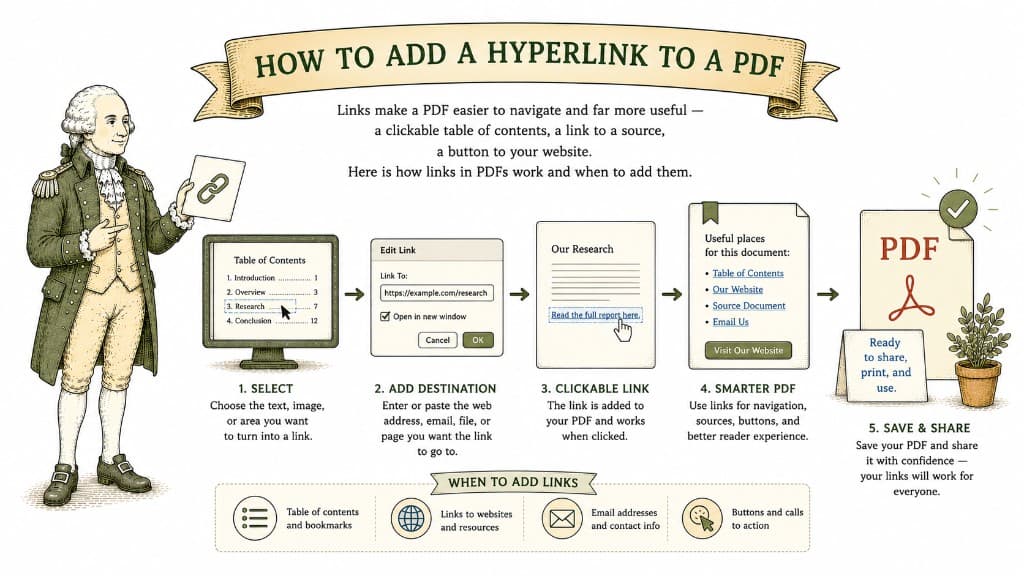
Links make a PDF easier to navigate and far more useful — a clickable table of contents, a link to a source, a button to your website. Here is how links in PDFs work and when to add them.
3 min read
You have a perfect document with one bad page. You do not need to rebuild the file — you just need that one page gone. Here is how to remove it cleanly.
3 min read