Converting a PDF back into an editable Word file is one of the most common document tasks there is — and one of the most frustrating. The text comes through but the layout scatters. Here is what the converter is actually wrestling with, and why some files come out clean while others come out chaos.
A PDF and a Word document are built on opposite philosophies. A PDF is designed to look exactly the same everywhere — it freezes every character in a fixed position so a contract printed in Tokyo matches the one printed in New York. A Word document is designed to flow and reflow — text moves as you edit, paragraphs reshape, pages repaginate. Converting from frozen to flowing means the tool has to reverse-engineer structure the PDF threw away.
The PDF knows where every letter sits but not why. It does not store "this is a heading" or "these three blocks are columns" or "this is a bulleted list." The converter has to infer all of that from position and styling — a big bold line near the top is probably a heading; text in two tall blocks is probably columns; short lines starting with a dot are probably bullets. When it guesses right, the Word file looks great. When it guesses wrong, you get text boxes where you wanted paragraphs.
Simple, text-heavy documents convert best: a letter, an essay, a single-column report. The fewer layout tricks, the less there is to misread.
Trouble comes from complexity. Multiple columns, tables, sidebars, headers and footers, and text wrapped around images all force the converter into harder guesses. And a scanned PDF is the hardest case of all — it is a photograph, so before anything can be edited, OCR has to read the pixels as letters, which adds its own layer of possible errors.
Start from the best source you have. A PDF exported directly from Word will round-trip far better than one that has been printed, scanned, and flattened. Keep your expectations matched to the layout: a plain document should come back nearly perfect, while a magazine-style page never will.
After converting, fix structure before fine details. Reattach headings, rebuild any broken tables, and clear stray text boxes first — then worry about fonts and spacing. Chasing a single misaligned word before fixing the overall structure wastes time, because restructuring often resolves the small problems anyway.
Drop your PDF in, choose Word as the output, and pay a dollar once it is ready. You get a real DOCX back — the whole document, ready to edit, with no watermark.
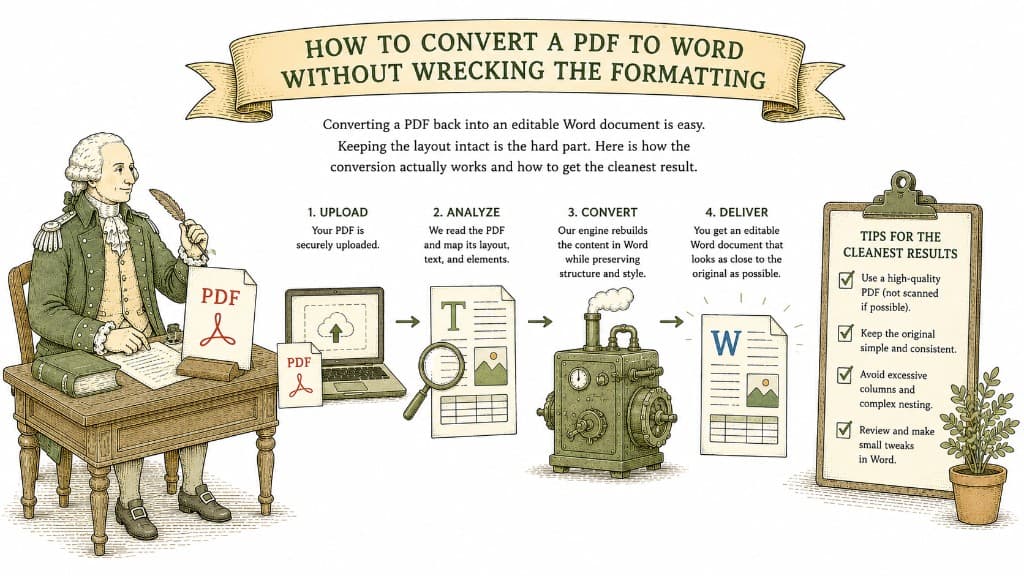
Converting a PDF back into an editable Word document is easy. Keeping the layout intact is the hard part. Here is how the conversion actually works and how to get the cleanest result.
3 min read
A PDF table looks like a spreadsheet but behaves like a picture. Here is what a good PDF-to-Excel conversion actually does, and how to get clean columns instead of a mess you have to retype.
3 min read
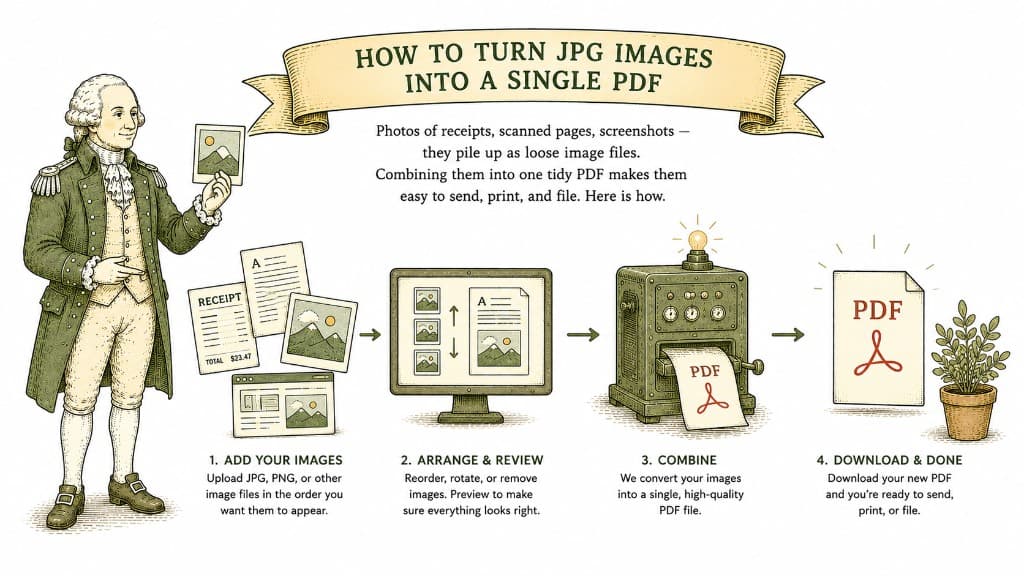
Photos of receipts, scanned pages, screenshots — they pile up as loose image files. Combining them into one tidy PDF makes them easy to send, print, and file. Here is how.
3 min read