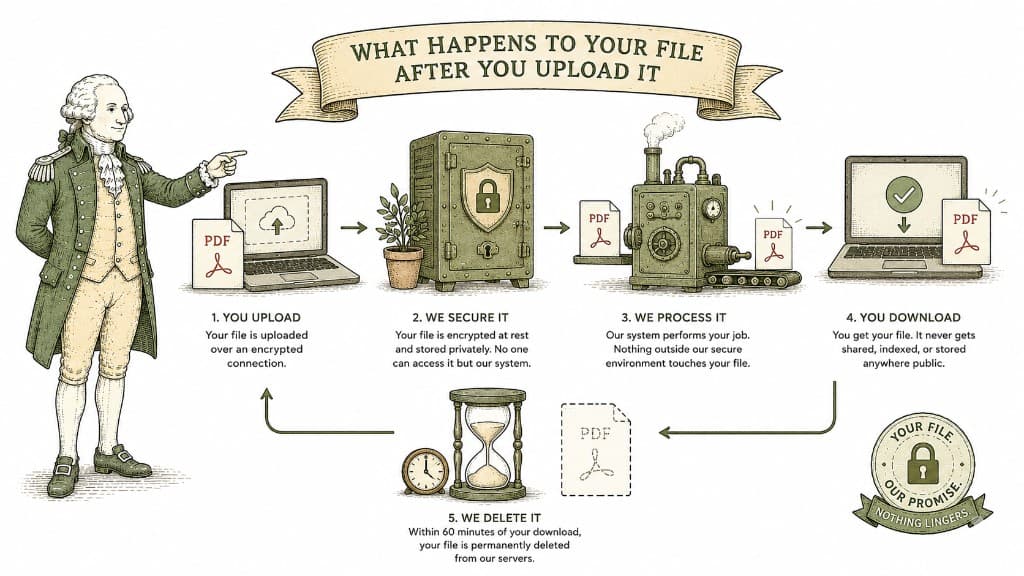
A PDF table looks like a spreadsheet but behaves like a picture. The numbers are locked into a layout, not sitting in cells you can sort or total. Here is what a good PDF-to-Excel conversion actually does, and how to get clean columns instead of a mess you have to retype.
A table inside a PDF is not really a table. It is text positioned to look like rows and columns. The PDF has no idea that the "12.50" on the left and the "Office supplies" next to it belong to the same row — it only knows where each piece of text sits on the page. Converting to Excel means a tool has to look at all that loose text and rebuild the grid the original author had in mind.
When numbers spill into the wrong cell, it is almost always because the original table had no real borders. The converter is guessing where one column ends and the next begins based on the gaps between text. A table with clear gridlines converts cleanly. A table held together by spacing alone gives the tool less to work with, so a stray decimal point or a long label can throw the alignment off by a column.
Merged cells, stacked headers, and footnotes make it harder still. A header that spans three columns has to be split back apart, and the tool does not always split it the way you would.
The single biggest factor is the source file. A PDF that was exported from a spreadsheet or accounting program carries cleaner structure than a PDF that was scanned from paper. If you have the choice, always start from the digital original.
If your only copy is a scan, the file is an image, and the conversion needs OCR to read the numbers as text first. Expect to check the result more carefully — a scanned "8" misread as a "3" is the kind of error that hides in a column of figures.
After converting, scan the first and last rows of each section. Errors cluster at the edges of a table, where the converter had to guess hardest. Fixing two cells beats retyping two hundred.
Some tables are not worth fighting. A dense financial statement with nested subtotals, color-coded cells, and tiny footnote markers may come out close but never perfect. If the table is small, retyping it is faster than cleaning up a bad conversion. If it is large, convert it, then treat the result as a 90 percent head start rather than a finished file.
Drop your PDF in, choose Excel as the output, and pay a dollar once the file is ready. You get a real XLSX back — your tables in actual cells, ready to sort and total, with no watermark.
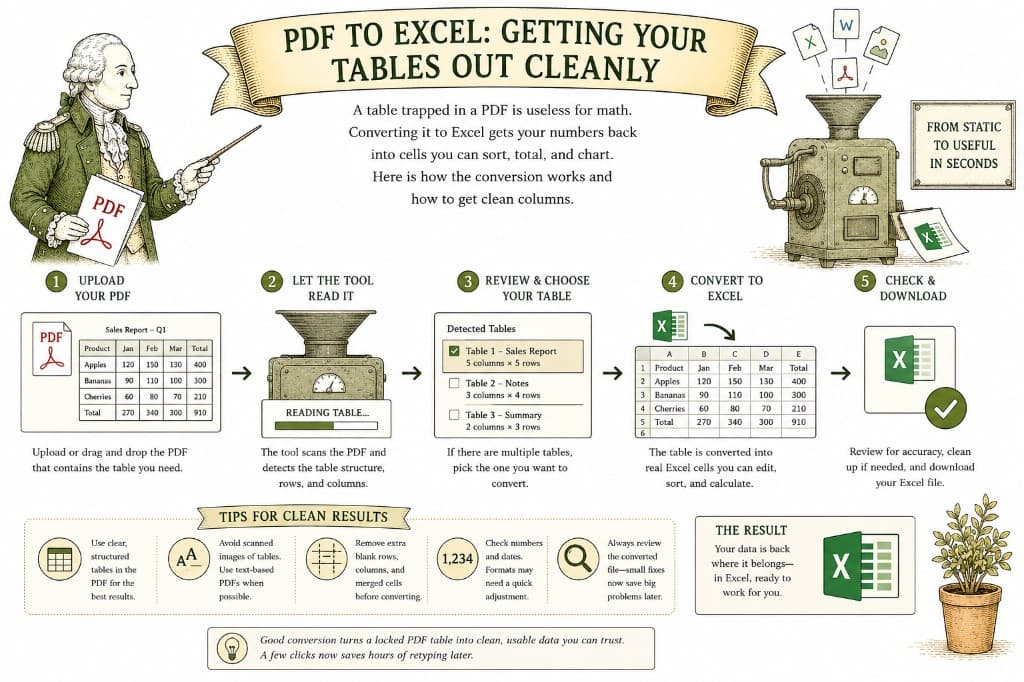
A table trapped in a PDF is useless for math. Converting it to Excel gets your numbers back into cells you can sort, total, and chart. Here is how the conversion works and how to get clean columns.
3 min read
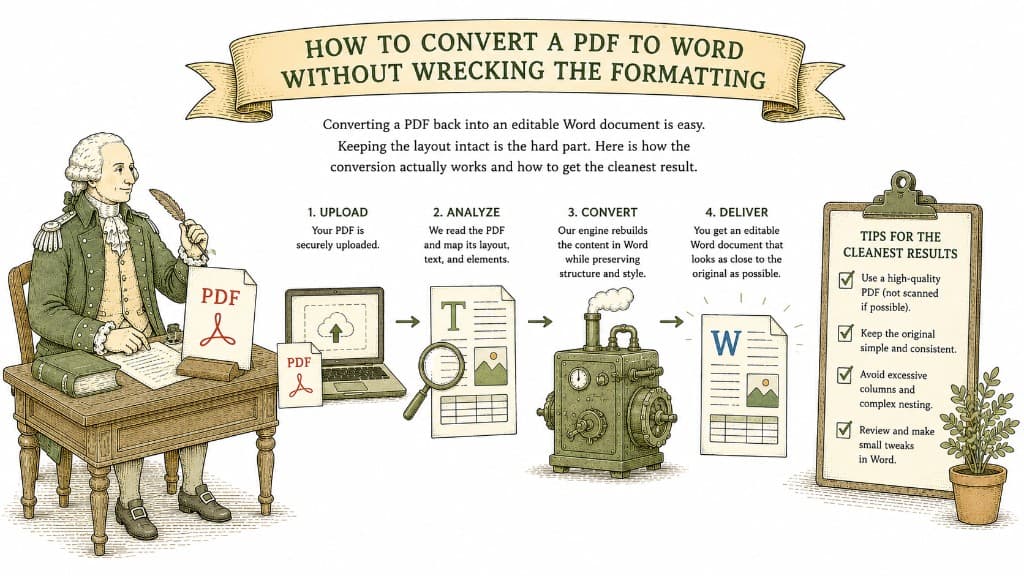
Converting a PDF back into an editable Word document is easy. Keeping the layout intact is the hard part. Here is how the conversion actually works and how to get the cleanest result.
3 min read
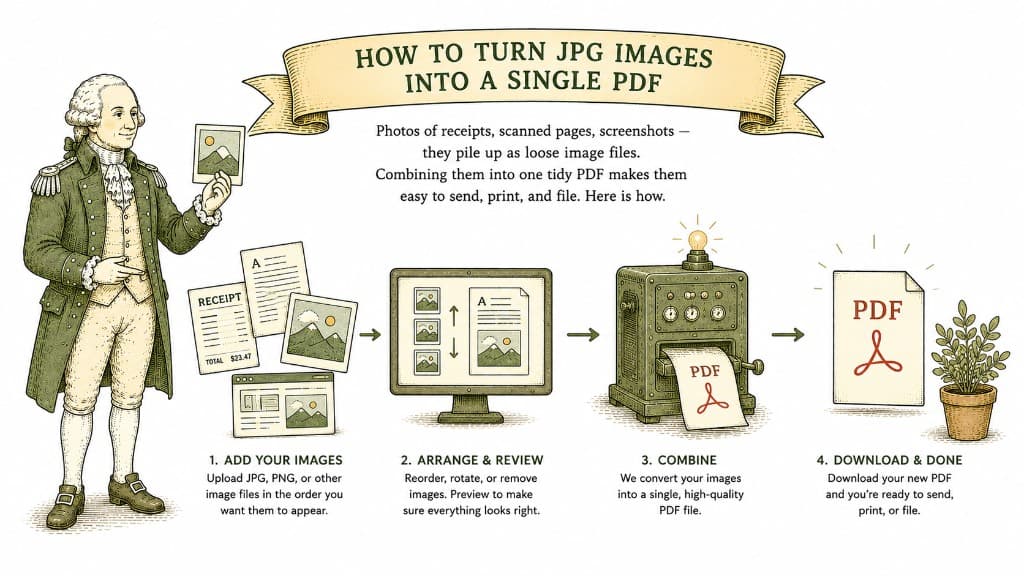
Photos of receipts, scanned pages, screenshots — they pile up as loose image files. Combining them into one tidy PDF makes them easy to send, print, and file. Here is how.
3 min read