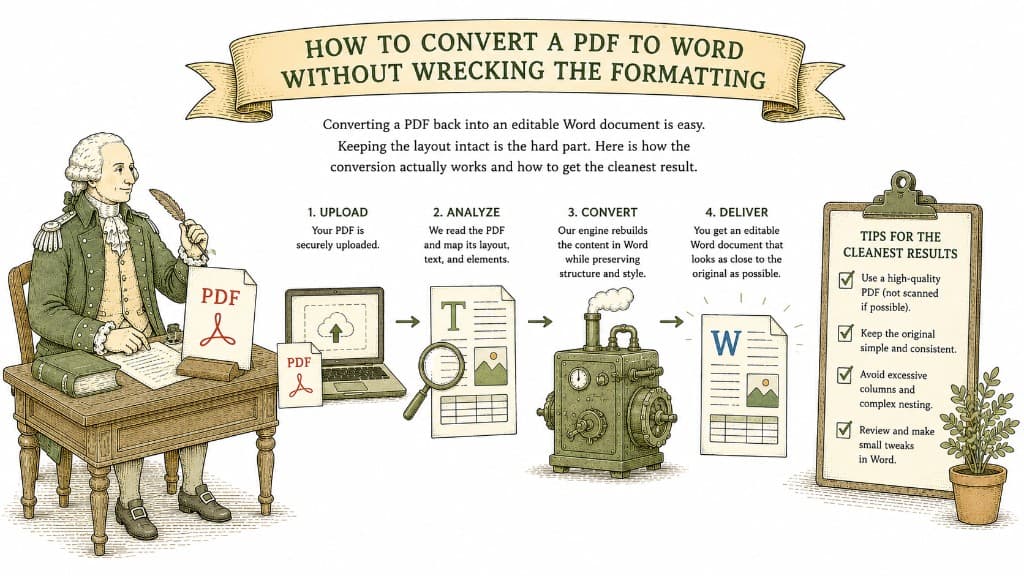
A PDF is built to be looked at, not changed. That is the whole point of the format — it looks identical on every device. But sometimes you need to get back inside one: fix a typo in a contract, update a figure in a report, or reuse a few paragraphs. For that, you need it in Word.
A Word document and a PDF think about a page very differently. Word treats a page as a flow of text that rearranges as you edit. A PDF treats a page as a fixed canvas where every character sits at an exact spot. Converting from fixed to flowing is the genuinely hard part, and it is why some converters produce a mess of text boxes while others produce a clean, editable document.
A good conversion reads the structure of the PDF — paragraphs, headings, tables, columns — and rebuilds it as real Word elements that reflow naturally when you type.
There are two kinds, and they convert very differently.
If you can open your PDF and select a sentence with your cursor, it has a real text layer. These convert cleanly, because the text is already there to be moved into Word.
If you cannot select any text — if dragging your cursor selects the whole page like a photo — your PDF is scanned. The "text" is actually a picture of text. To make it editable, it first needs OCR, which reads the letters out of the image and turns them into real text. Without that step, you will get a Word file containing a single big image and nothing you can edit.
Drop your PDF in, choose Word as the output, and pay a dollar once the file is uploaded and ready. You get a real DOCX back — not a watermarked preview, not a three-page sample. The whole document, ready to edit.
The text comes through but the layout scatters. Here is what the converter is actually wrestling with, and why some files come out clean while others come out chaos.
3 min read
A PDF table looks like a spreadsheet but behaves like a picture. Here is what a good PDF-to-Excel conversion actually does, and how to get clean columns instead of a mess you have to retype.
3 min read
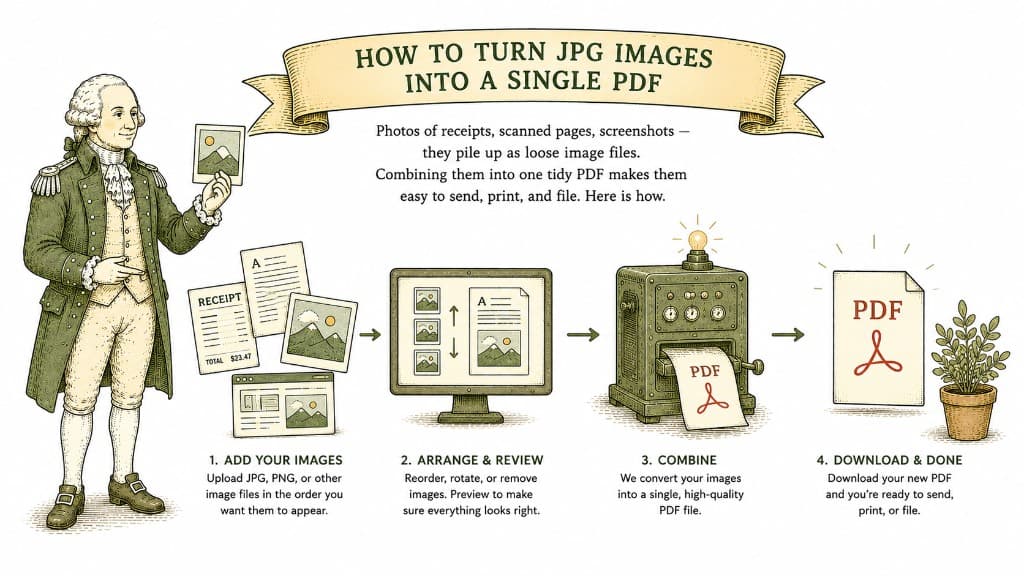
Photos of receipts, scanned pages, screenshots — they pile up as loose image files. Combining them into one tidy PDF makes them easy to send, print, and file. Here is how.
3 min read