A PDF opens fine on one computer and refuses on another. It previews in your browser but prints blank, or half a page, or not at all. This is one of the most common and most maddening document problems — and it is almost never the file itself. Here is how to work through it quickly.
When a PDF will not open or print from a browser, the cause is usually the viewer, not the document. Browsers have built-in PDF viewers that are convenient but limited, and they stumble in predictable ways. The fastest fixes target the viewer, not the file.
Before troubleshooting anything else, download the file and open it in a dedicated PDF reader instead of viewing it inside the browser. An enormous share of "this PDF is broken" problems vanish the moment the file is opened in a real reader rather than a browser preview — especially printing problems, which browser viewers handle poorly. If you only try one thing, try this.
Browser PDF viewers trip over a few recurring issues. A corrupted cache can leave the viewer trying to render a half-loaded file. Browser extensions, especially ad blockers and privacy tools, sometimes interfere with how a PDF loads. An outdated browser may carry known PDF bugs already fixed in a newer version. And very large or complex files can simply exceed what the lightweight built-in viewer handles gracefully.
Printing is its own category. A PDF that displays perfectly in a browser can still print blank or partial, because rendering for the screen and rendering for a printer are different jobs, and browser viewers are weaker at the second one.
Work from easiest to hardest. First, download and open in a real reader — this alone solves most cases. If the file still misbehaves, clear your browser cache and try again, since a damaged cached copy is a frequent culprit. Next, try a different browser; if it works there, the problem was the first browser, not the file. If nothing displays anywhere, the file itself may be damaged, and re-downloading it or asking the sender for a fresh copy is the move.
Occasionally a PDF is genuinely corrupted — interrupted during download, or exported badly at the source. The tell is that it fails everywhere, in every reader and browser. In that case, re-saving it through a PDF tool can sometimes rebuild a clean version, but the most reliable fix is getting an undamaged copy from wherever it came from.
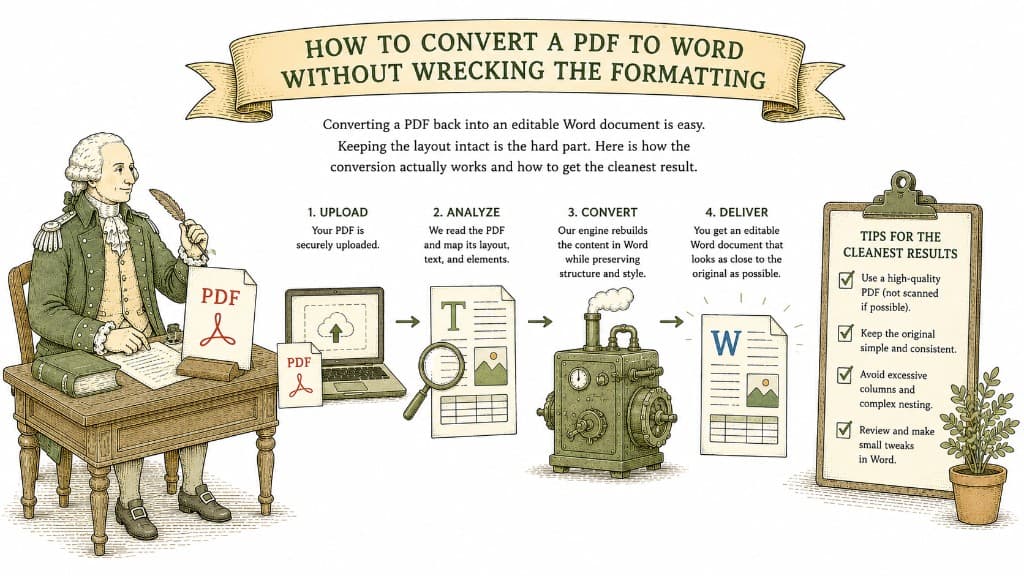
Converting a PDF back into an editable Word document is easy. Keeping the layout intact is the hard part. Here is how the conversion actually works and how to get the cleanest result.
3 min read
A PDF table looks like a spreadsheet but behaves like a picture. Here is what a good PDF-to-Excel conversion actually does, and how to get clean columns instead of a mess you have to retype.
3 min read
The print-sign-scan loop is the most wasteful thing people still do with documents. There is a faster way, and for most documents it is just as valid.
3 min read