You export a presentation to PDF, open it on another computer, and the careful layout has shifted — text overflows its box, line breaks fall in odd places, the whole thing looks slightly off. The culprit is almost always fonts. Here is why it happens and how to lock your slides down before you export.
When a converted presentation looks different from the original, the usual cause is font substitution. Your slides were designed with specific fonts. If the PDF does not carry those fonts inside it, the device opening the file swaps in a substitute — and because no two fonts are exactly the same width, that swap pushes text around, breaks lines in new places, and quietly wrecks the layout you spent time on.
A font lives on the computer that has it installed. When you build slides using a font you installed or that came with your design software, that font may not exist on the next machine. If the PDF embeds the font — packs a copy inside the file — it travels everywhere and renders correctly. If it does not, the receiving device guesses a replacement, and the guess is rarely the same width.
This is exactly why text reflows. A substitute font that is even slightly wider makes a line wrap early; a narrower one leaves awkward gaps. Either way, a layout tuned to the original font no longer fits.
The fix is to make sure fonts are embedded when you convert. Most presentation software has a font-embedding option in its save or export settings — turning it on packs the fonts into the file so they cannot be substituted. This single setting prevents the large majority of layout surprises.
If you cannot embed for some reason, the fallback is to design with common, widely installed fonts that are likely to exist on the receiving machine anyway, so even a substitution lands close to the original. It is a weaker safeguard than embedding, but better than relying on an exotic font being present everywhere.
Fonts are the main offender, but not the only one. Linked content — a chart pulled live from a spreadsheet, for instance — may not render the way it did on your machine. Animations and transitions simply do not exist in a PDF; each slide becomes a static page, so anything that depended on motion needs rethinking. And speaker notes do not appear unless you specifically export a notes layout. Knowing this in advance saves the surprise of a PDF that is missing what you assumed would carry over.
Drop your PowerPoint in, choose PDF as the output, and pay a dollar once it is ready. You get the converted file back to download — each slide as a clean page, with no watermark.
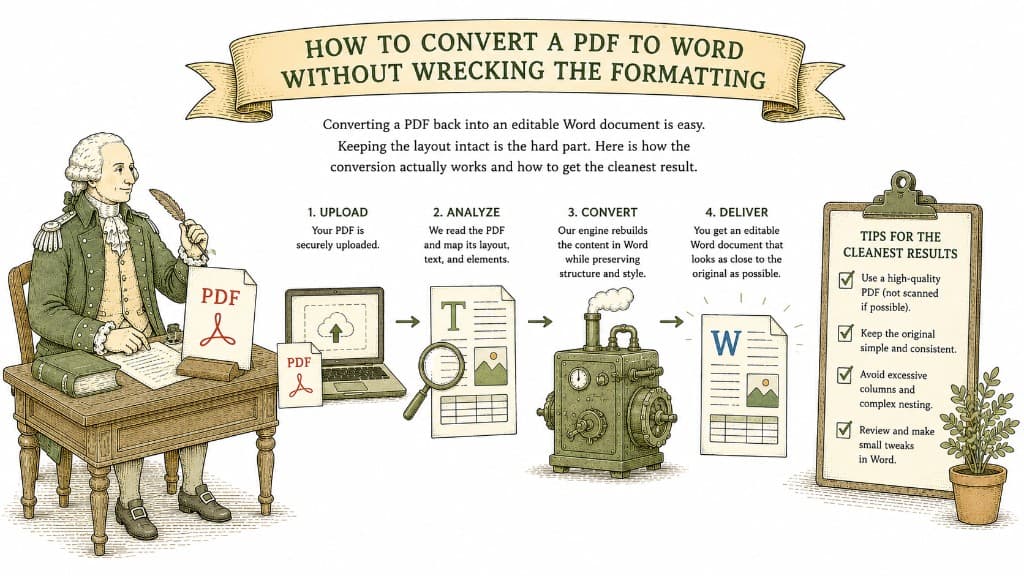
Converting a PDF back into an editable Word document is easy. Keeping the layout intact is the hard part. Here is how the conversion actually works and how to get the cleanest result.
3 min read
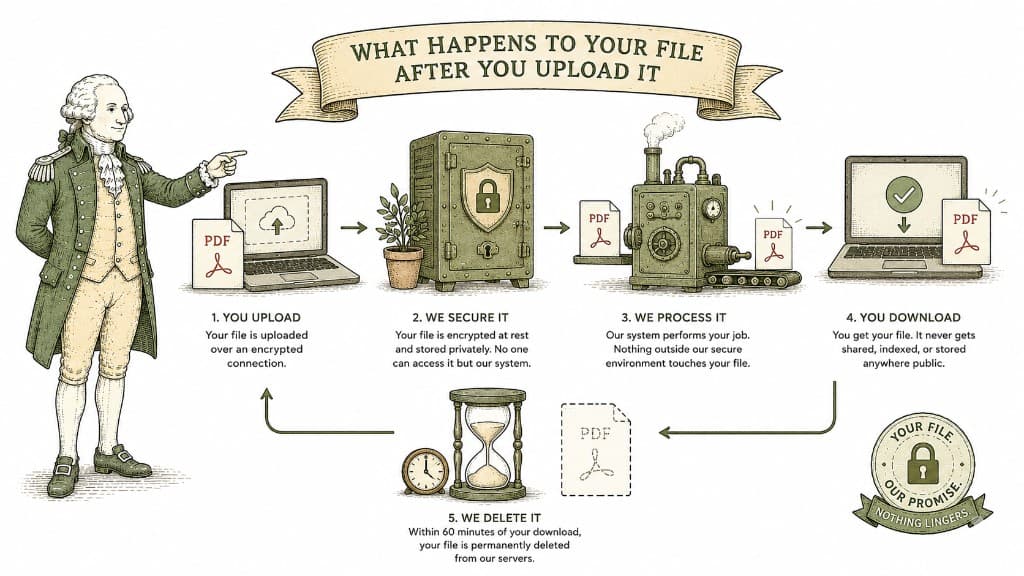
A PDF table looks like a spreadsheet but behaves like a picture. Here is what a good PDF-to-Excel conversion actually does, and how to get clean columns instead of a mess you have to retype.
3 min read
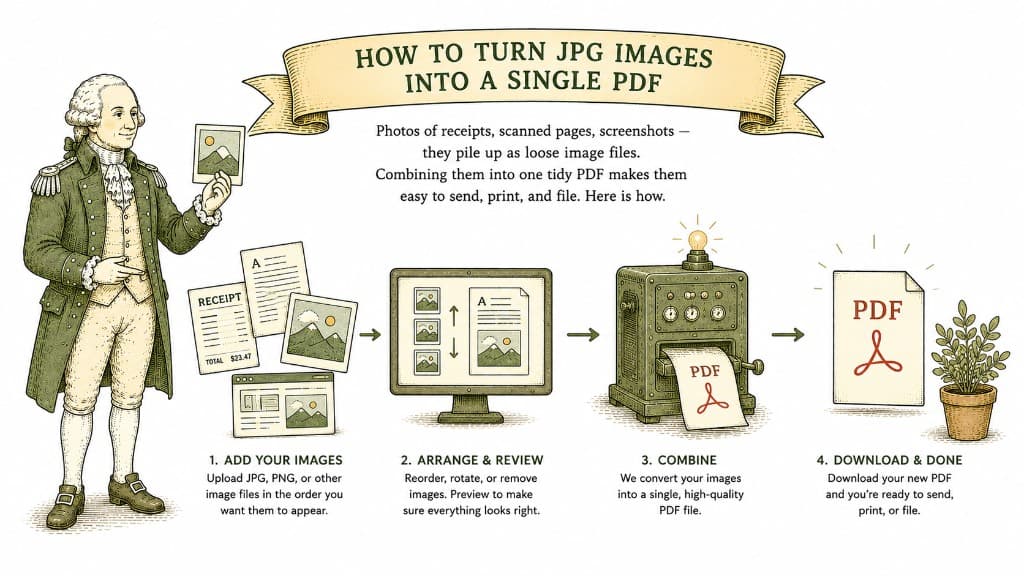
Photos of receipts, scanned pages, screenshots — they pile up as loose image files. Combining them into one tidy PDF makes them easy to send, print, and file. Here is how.
3 min read