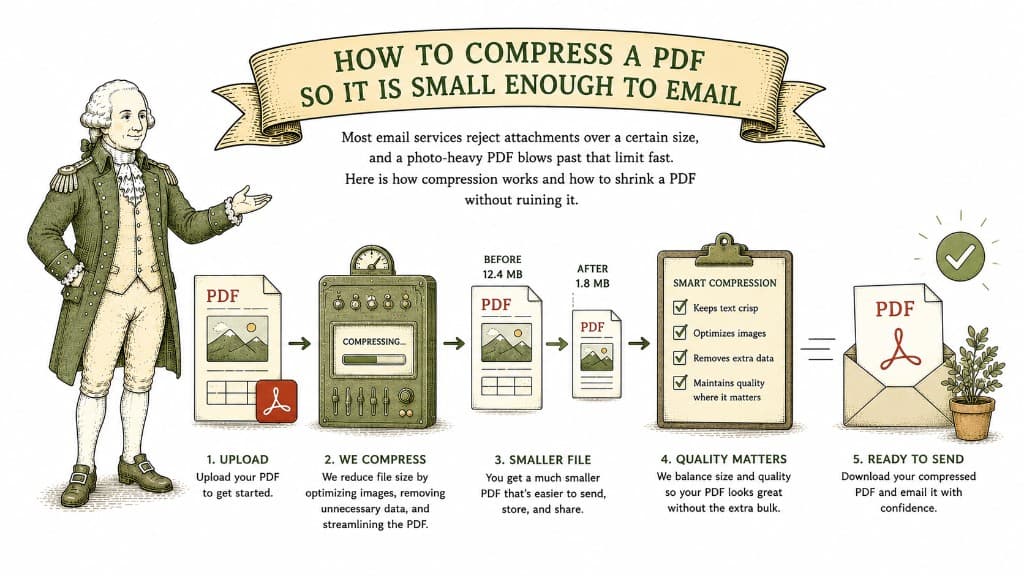
You finish a PDF, attach it to an email, hit send, and get bounced back: file too large. It is one of the most common small frustrations in office life, and the cause is almost always the same — images.
A PDF full of text is tiny. A PDF full of high-resolution images is not. Scanned documents, photo-based pages, and exported design files pack in far more visual data than the screen actually needs to display them. Compression reduces that data so the file shrinks while still looking right.
There are two kinds. Lossless compression tidies up the file without discarding anything, which is safe but modest. Lossy compression reduces image detail you cannot really see at normal viewing size, which saves dramatically more. For emailing, lossy is usually the right trade: the reader will never notice, and the file finally fits.
It depends entirely on what is inside. A scanned, image-heavy PDF can often shrink by half or more with no visible difference. A PDF that is already mostly text will barely move, because there is not much excess to remove. If a file refuses to shrink much, that is a sign it was already lean.
Drop your PDF in, run the compress job, and pay a dollar once it is ready. You get the smaller file back to download — the whole document, just lighter, with no watermark added.
You need it smaller, but you do not want photos that look like they were faxed. Here is how to hit an email-friendly size while keeping the file looking good.
3 min read
A ten-page text document might be 80 kilobytes; a ten-page brochure might be 80 megabytes. Here is what actually fills up a PDF and how to bring a bloated one back down.
3 min read
One can shrink a file with no visible loss; the other trades away detail you cannot get back. Knowing which one a tool is doing tells you what you are about to lose.
3 min read