You have finished a document — maybe merged from several files — and realize it has no page numbers. Re-exporting from every original source is a hassle, and merged files do not have a single source anyway. The fix is to add page numbers directly to the finished PDF. Here is how, and how to make them look right.
Page numbers can be stamped onto a PDF after the fact, without touching the original content. The tool adds a small text element to each page in a consistent position — and because it numbers the actual PDF pages in order, it works even on a file assembled from many different documents that never shared a numbering scheme.
The most common reason is a merged document. When you combine several PDFs, each came from its own source and the result has no continuous numbering — page 1 of the second file does not know it is really page 12 of the whole. Stamping numbers onto the finished file gives the whole packet one clean sequence. The same applies to any PDF that was simply made without numbers and now needs them for reference, printing, or a professional finish.
A few choices make page numbers look deliberate rather than tacked on. Position them consistently — bottom center or a bottom corner are the conventional spots — and keep them clear of existing content so they do not overlap text or footers already on the page. Match the size and style to the document so they read as part of it.
Decide where numbering should start. If your document opens with a cover page, you often do not want a "1" on the cover — numbering from the first content page looks more polished. Some situations call for the printed number to differ from the physical page, like starting the count after front matter, so think about what the reader expects to see.
Page numbers are only as right as the page order beneath them. If you are numbering a merged file, confirm the pages are in the sequence you intend before stamping numbers on — otherwise you are simply labeling a jumbled order more clearly. Get the order settled first, then number.
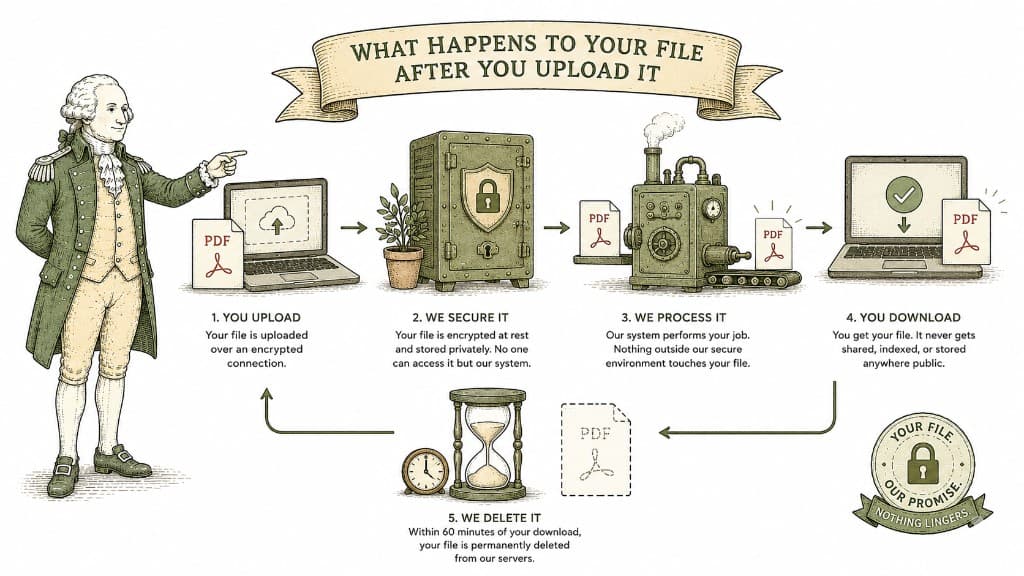
A fillable PDF lets people type directly into the fields and send it straight back. Here is what makes a PDF fillable and how to turn a flat form into one.
3 min read
Splitting a PDF pulls out exactly what you want and leaves the rest alone. Here is how to do it cleanly so nothing goes missing.
3 min read
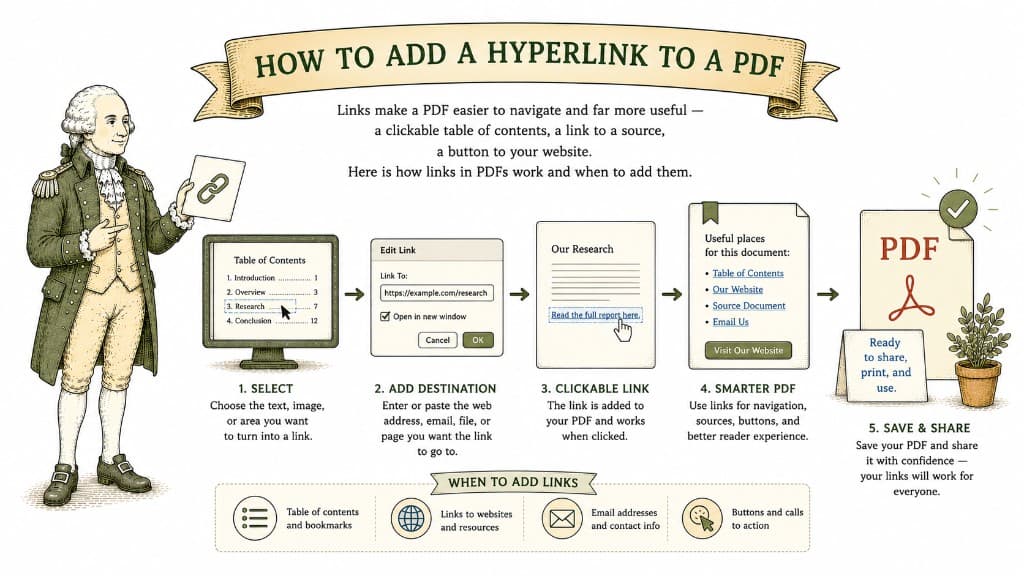
Links make a PDF easier to navigate and far more useful — a clickable table of contents, a link to a source, a button to your website. Here is how links in PDFs work and when to add them.
3 min read